

Change the payment method from your subscription page (not the payment methods tab)
If the Pay Method Button is Visible
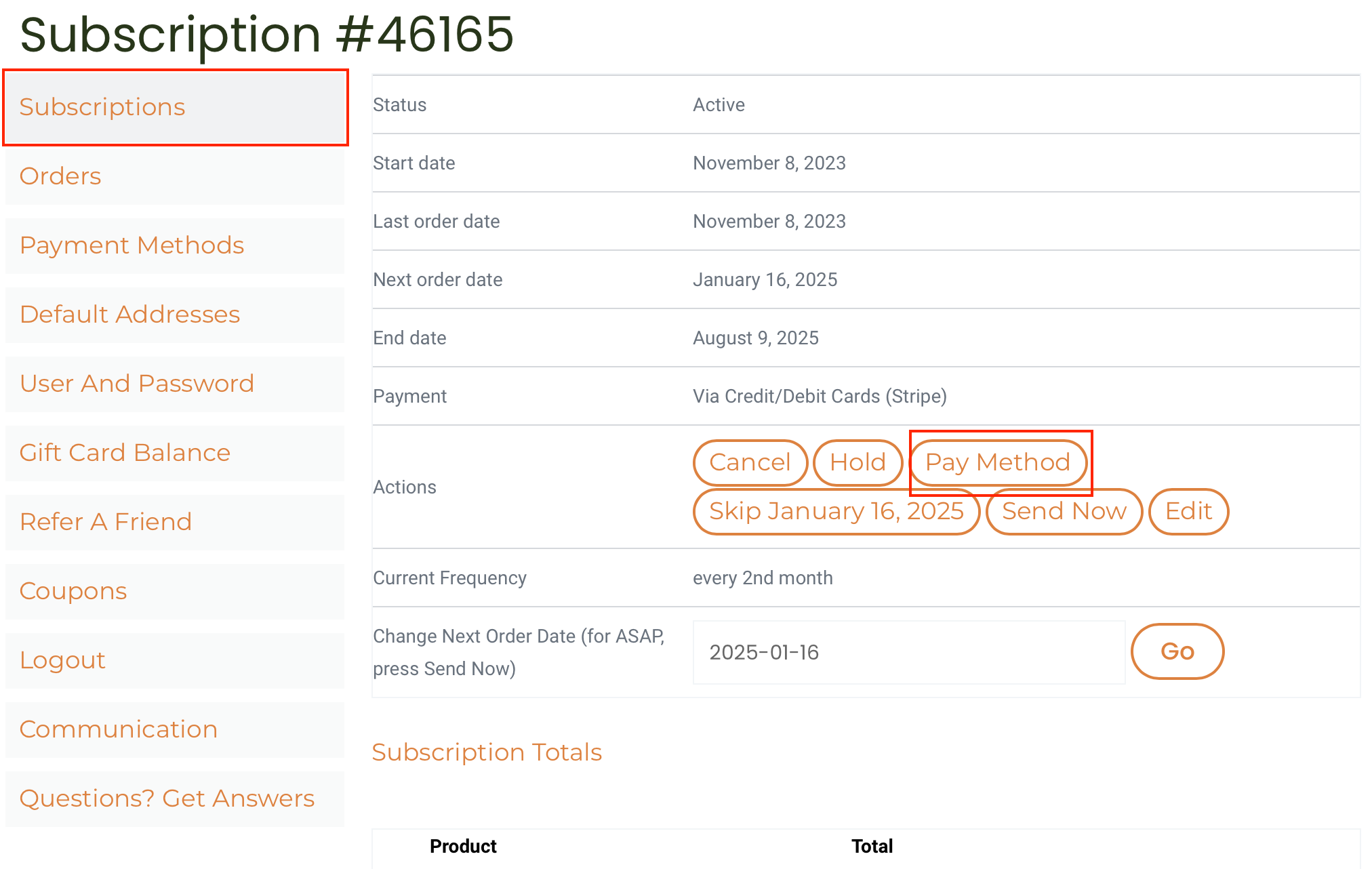
To change the payment on your subscription, login and go to the Subscription tab on your account and press the Pay Method button.
Enter a new card or select a saved one. To change a card’s expiration date and/or cvv add the newly issued card. You can delete the old one from the Payment Methods tab on your account.
If you have more than one subscription this card will be applied to all of them by default. There is a checkbox at the bottom of the form that you can untick so that your change applies only to this subscription.
If the Pay Method Button is Not Visible
If the subscription is on hold and the reactivate button is visible, reactivate your subscription and then use the Pay Method button as above.
If the Reactivate Button is also Not Visible
If the activate button is not visible either, it is because there is a subscription order that requires payment in order for us to process it.
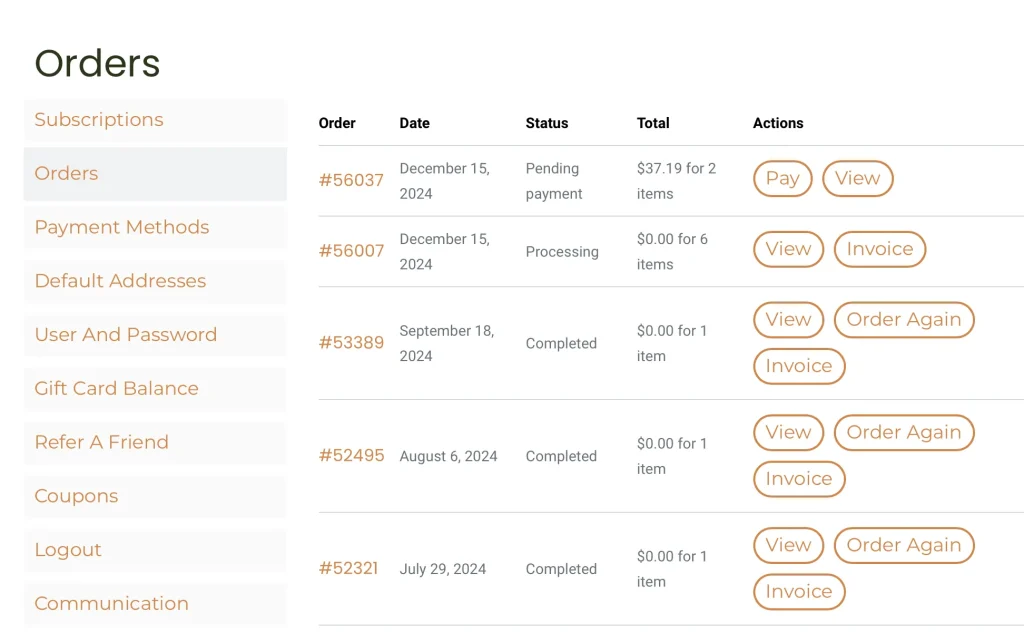
Navigate to the Orders tab to see a list of your orders. One, probably to one at the top of the list, has a Pay button beside it. Pressing that will present a form for you to enter and pay that order.
Paying that order will release the subscription hold and will apply that method to the subscription. If you don’t want that order, let us know and we will cancel it for you.